
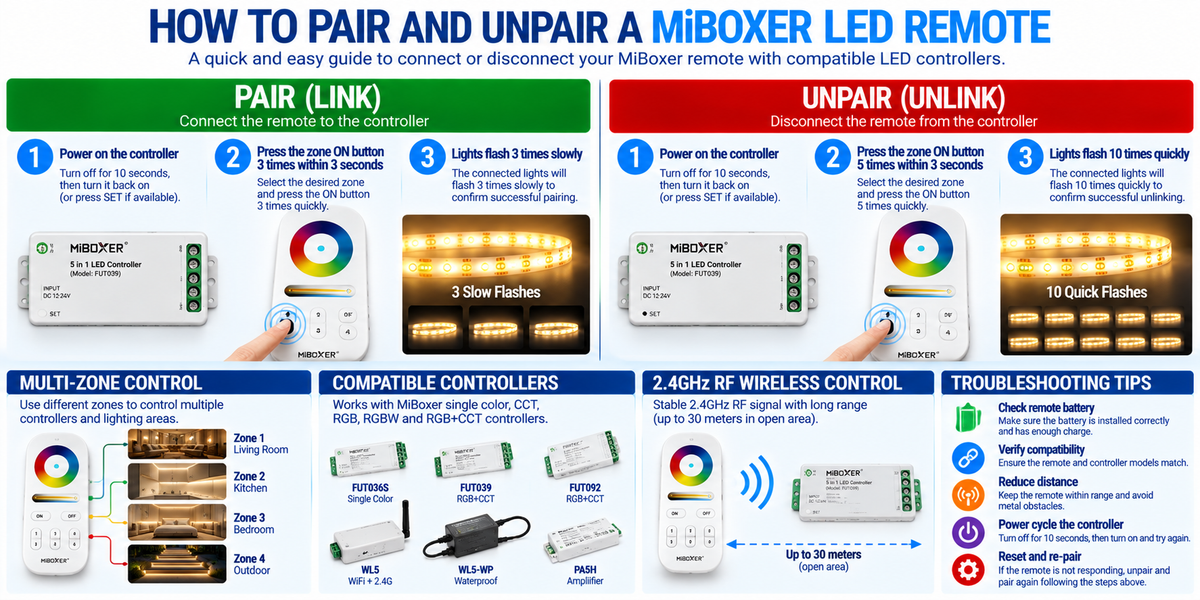
How to Pair and Unpair a MiBoxer LED Remote: Step-by-Step Guide
MiBoxer LED controllers and wireless remotes make it possible to control LED strip lighting without running separate control wires to every wall switch.
They are widely used for:
- Single-color COB LED strips
- CCT tunable-white lighting
- RGB and RGBW LED strips
- RGB+CCT lighting
- Multi-zone residential installations
- Commercial shelving, display, and architectural lighting
However, before a wireless remote can operate a compatible MiBoxer LED controller, the two devices may need to be paired.
If the remote stops responding, controls the wrong lighting zone, or needs to be replaced, you may also need to unpair it.
The good news is that many MiBoxer 2.4GHz RF controllers use a straightforward pairing procedure that takes only a few seconds.
This guide explains how pairing and unpairing work, how to manage multiple zones, and how to solve common connection problems.
1. What Does Pairing a MiBoxer Remote Mean?
Pairing, sometimes called linking, establishes a control relationship between a compatible MiBoxer remote and LED controller.
A typical installation looks like this:
LED Driver → MiBoxer Controller → LED Strip
The wireless remote communicates with the controller, which adjusts the connected lighting.
Depending on the equipment, the remote may control:
- On/off operation
- Brightness
- Color temperature
- RGB colors
- RGBW lighting
- Lighting scenes
- Individual zones
- Multiple zones together
Pairing is different from physically wiring the controller to the LED strip.
The controller must first be installed correctly and supplied with the required power.
2. Before You Start: Check Compatibility
Not every MiBoxer remote works with every MiBoxer controller.
MiBoxer offers different control technologies and lighting configurations.
For example, a single-color remote may not support the functions of an RGB+CCT system.
Before pairing, verify:
| Component | What to Check |
|---|---|
| Remote | Exact model and supported control protocol |
| Controller | Compatible remote models |
| LED strip | Single-color, CCT, RGB, RGBW, or RGB+CCT |
| Power supply | Correct voltage and sufficient capacity |
| Remote battery | Correct installation and adequate charge |
| Lighting zone | Correct zone selection |
| Installation | Proper wiring and operating conditions |
Important: The pairing procedure below applies to many MiBoxer 2.4GHz RF products, but it is not universal. Always use the exact remote and controller manuals.
3. How to Pair a MiBoxer LED Remote
For many compatible MiBoxer 2.4GHz RF controllers, the standard procedure is:
Step 1: Turn Off the Controller
Switch off the controller's power supply.
For models using the standard power-cycle method, leave it off for approximately 10 seconds.
Step 2: Turn the Controller Back On
Restore power.
Some controllers also support entering pairing mode by briefly pressing the SET button instead of cycling power.
Step 3: Select the Correct Remote Zone
If the remote supports multiple zones, identify the zone you want to assign.
Step 4: Press the Link Button Three Times
On many compatible MiBoxer RF remotes, press the designated zone's ON or Link button three times within three seconds.
The exact button may differ between remote models.
Step 5: Watch for Confirmation
On many models, the connected lights blink three times slowly to confirm successful pairing.
Step 6: Test the Remote
Try turning the lights on and off, changing brightness, and adjusting supported colors.
If the controller responds correctly, pairing is complete.
This three-press procedure and confirmation pattern are documented for various MiBoxer 2.4GHz controllers.
4. How to Unpair a MiBoxer LED Remote
Unpairing, also called unlinking, removes an established control relationship.
You may need to unpair a controller when:
- Replacing a remote
- Reassigning lighting zones
- Correcting an accidental pairing
- Changing the lighting layout
- Troubleshooting control problems
Step 1: Turn Off the Controller
Disconnect controller power using its normal switching arrangement.
Step 2: Wait Approximately 10 Seconds
For controllers that use the standard power-cycle procedure, wait approximately 10 seconds before restoring power.
Step 3: Restore Power
Turn the controller back on or use the supported SET-button method.
Step 4: Select the Previously Paired Zone
On multi-zone remotes, use the zone originally associated with the controller.
Step 5: Press the Unlink Button Five Times
For many MiBoxer 2.4GHz RF products, press the designated ON or Link/Unlink button five times within three seconds.
Step 6: Check the Confirmation
On many models, the lights blink 10 times quickly to indicate successful unlinking.
Step 7: Test the Remote
Verify that the former zone no longer controls the device.
The standard five-press unlinking procedure is described in MiBoxer documentation, although some remotes use different buttons or commands.
5. MiBoxer Pairing vs. Unpairing: Quick Comparison
| Action | Common Procedure | Typical Confirmation |
|---|---|---|
| Pair / Link | Press designated button 3 times within 3 seconds | 3 slow flashes |
| Unpair / Unlink | Press designated button 5 times within 3 seconds | 10 quick flashes |
| Reassign a zone | Unlink the existing relationship, then link the desired zone | Confirmation for each operation |
| Pairing fails | Verify compatibility, power and timing | No expected confirmation flashes |
These procedures apply to many MiBoxer 2.4GHz RF products, not every MiBoxer device.
6. What Is the SET Button on a MiBoxer Controller?
Some MiBoxer controllers include a physical SET button.
Depending on the model, this button may be used to:
- Enter remote pairing mode
- Change controller operating modes
- Activate another configuration function
On certain models, briefly pressing SET once provides an alternative to switching the controller off and on.
However, the SET button can have different functions on different products.
Do not hold or repeatedly press SET without checking the model-specific instructions.
7. How to Pair a MiBoxer Remote with Multiple LED Zones
One of the most useful MiBoxer features is multi-zone lighting control.
For example, a retail store may have:
- Zone 1: Display shelves
- Zone 2: Wall lighting
- Zone 3: Architectural cove lighting
- Zone 4: Reception lighting
A compatible multi-zone remote such as the FUT096 4-zone RGBW remote can control these areas separately.
Example: Assigning Zone 1
- Identify the controller serving the display shelves.
- Enter pairing mode on that controller.
- Use the Zone 1 linking control on the remote.
- Complete the model-specific pairing procedure.
- Verify that Zone 1 controls the correct lighting.
Repeat the procedure for the other controllers and zones.
Professional Tip
Pair controllers individually whenever practical.
This reduces the chance of accidentally assigning several controllers to the wrong zone. Our guide on synchronizing multiple LED strip zones covers multi-zone planning in more detail.
8. Can One MiBoxer Remote Control Multiple Controllers?
Yes, many compatible MiBoxer RF systems support group control.
For example, a showroom may use three controllers for separate COB LED strip runs.
If the controllers are compatible and assigned to the same remote zone, they can respond to the same control commands.
This can be useful when the installation requires:
- Synchronized brightness
- Simultaneous on/off operation
- Consistent color-temperature changes
- Coordinated RGB lighting
However, each controller must remain within its own electrical load ratings.
Pairing multiple controllers to one remote does not increase the capacity of any individual controller. Where a single zone exceeds one controller's rating, a 5-channel LED amplifier can extend the load.
9. Can Multiple MiBoxer Remotes Control the Same LED Controller?
Some MiBoxer systems support control from multiple compatible remotes.
This can be useful in larger rooms or commercial environments.
For example, a lighting zone might need controls at two entrances — a handheld remote at one and a wall-mounted panel at the other.
Whether multiple remotes can be linked, and the maximum supported number, depends on the controller and remote models.
Consult the product manual before planning this arrangement.
10. MiBoxer Single-Color Remote Pairing
Single-color LED systems primarily control brightness and on/off operation.
A typical setup includes:
24V Driver → Single-Color MiBoxer Controller → 24V COB LED Strip
A compatible single-color remote may provide:
- On/off control
- Brightness adjustment
- Zone selection
- Scene or preset functions, depending on model
The MiBoxer B1-B is an example of a single-color zone remote.
However, the pairing method must be verified against the particular controller.
11. MiBoxer CCT Remote Pairing
CCT stands for Correlated Color Temperature.
A CCT LED system can adjust between warmer and cooler white light using compatible tunable-white LED strips.
For example:
- Warm white for hospitality lighting
- Neutral white for general work areas
- Cool white for certain task applications
A compatible MiBoxer CCT remote such as the FUT007 4-zone CCT remote can adjust brightness and color temperature.
Pairing must be performed with a controller that supports the appropriate CCT configuration, such as the FUT035.
A single-color-only controller cannot automatically provide tunable-white functionality.
12. MiBoxer RGB and RGBW Remote Pairing
RGB and RGBW systems support multiple lighting channels.
RGB uses red, green, and blue channels.
RGBW adds a dedicated white channel.
A compatible remote may provide:
- Color selection
- Brightness adjustment
- Color-changing modes
- Speed adjustments
- Zone selection
For example, the MiBoxer FUT092 is a remote used with compatible RGB+CCT lighting systems, paired with a controller such as the FUT039.
For RGB and RGBW strips specifically, use the FUT037S or FUT038S controller.
Before pairing, verify that the controller supports the remote and intended lighting configuration.
13. Pairing a MiBoxer RGB+CCT Remote
RGB+CCT systems combine color-changing capability with tunable-white control.
These systems may support:
- RGB colors
- Warm-white adjustment
- Cool-white adjustment
- Brightness control
- Multiple zones
The MiBoxer C8-B is an example of an eight-zone RGB+CCT remote.
For an eight-zone installation, each lighting area can be assigned to an appropriate zone, subject to system compatibility.
Example
| Zone | Application |
|---|---|
| 1 | Reception |
| 2 | Display shelves |
| 3 | Wall accents |
| 4 | Cove lighting |
| 5 | Meeting area |
| 6 | Product showcase |
| 7 | Decorative lighting |
| 8 | Lounge |
This arrangement allows a contractor to organize the lighting into independently controlled groups.
14. Can MiBoxer WiFi Controllers Pair with RF Remotes?
Some MiBoxer WiFi controllers also support compatible 2.4GHz RF remotes.
These systems may provide two distinct control methods:
WiFi or App Control
Used for supported smartphone or network-based operation.
2.4GHz RF Remote Control
Used for direct communication with compatible wireless remotes.
The MiBoxer WL5 and WL5-WP are examples of controller models associated with WiFi and 2.4GHz control functions. The WL5-WP is IP67 rated for damp and outdoor installations.
However, WiFi configuration and RF remote pairing are different procedures.
Successfully pairing an RF remote does not automatically complete smartphone app setup.
Always follow the relevant manual for each function.
15. Why Is My MiBoxer Remote Not Pairing?
Several issues can prevent successful pairing.
Incorrect Remote Compatibility
The remote may not support the controller.
Incorrect Pairing Button
Some remotes use zone-specific ON buttons, while others use dedicated Link controls.
Incorrect Timing
The required button presses may not occur within the specified time window.
Controller Already Linked
Certain MiBoxer products require an existing link to be removed before a new linking operation.
Low Remote Battery
A weak battery may prevent reliable wireless communication.
Incorrect Power Supply
The controller may not be receiving its required input voltage.
RF Communication Problems
Metal enclosures, distance, and electromagnetic interference can reduce wireless reliability.
16. Troubleshooting: Remote Pairing Does Not Work
| Problem | Possible Cause | Recommended Action |
|---|---|---|
| No confirmation flashes | Wrong timing or button | Repeat the exact model procedure |
| Remote does nothing | Battery or compatibility issue | Check battery and supported models |
| Wrong zone responds | Incorrect zone assignment | Unlink and reassign |
| Pairing works only nearby | Weak RF communication | Check placement and interference |
| Lights respond inconsistently | Connection or controller issue | Inspect system operation |
| App works but remote does not | RF pairing or compatibility problem | Check RF linking separately |
| Remote works but app does not | Network configuration issue | Troubleshoot WiFi separately |
17. Why Does a MiBoxer Remote Lose Connection?
A remote that previously worked may stop responding because of:
- Low battery
- Increased distance
- Metal obstructions
- Changes in controller location
- Radio-frequency interference
- Power supply problems
- Controller faults
A temporary loss of communication does not necessarily mean the remote has become unpaired.
Before unlinking and pairing again, check the battery, power supply, and RF operating conditions. Our guide on what causes LED controllers to lose connection covers this in detail.
18. How Far Can a MiBoxer Remote Work?
Wireless range varies by product.
Some MiBoxer 2.4GHz RF controllers specify a nominal remote-control distance of approximately 30 meters under suitable conditions.
However, actual range may be lower because of:
- Walls
- Metal structures
- Electrical enclosures
- Building materials
- Interference
- Installation geometry
Some compatible systems also support signal retransmission through controllers.
Do not assume that every MiBoxer model supports the same range or retransmission behavior. The specified range is listed on each controller and remote product page.
19. Should You Unpair Before Replacing a Remote?
It depends on the controller and how the existing pairing is stored.
If the original remote is still available, unlinking the existing relationship may be straightforward.
If the original remote is lost or damaged, the controller may support an alternative procedure for clearing or replacing the pairing.
However, that procedure is model-specific.
Do not assume that a generic power reset automatically removes all paired remotes.
Check the controller's manual for the supported recovery method. Contact our team if you need a replacement remote matched to an installed controller.
20. Does Unpairing a MiBoxer Remote Reset the LED Driver?
Normally, RF unlinking changes the controller's remote association rather than the electrical configuration of the LED driver.
The driver still supplies power to the lighting system.
However, certain controllers have separate reset and configuration functions.
A pairing reset should not be confused with:
- WiFi reset
- Factory reset
- Controller mode change
- Power supply reset
These functions may have different effects.
21. How to Avoid Accidental Pairing in Commercial Projects
In large installations, multiple controllers may be installed close together.
If several controllers enter pairing mode simultaneously, a remote may be linked to an unintended lighting zone.
Recommended Practices
- Label each controller.
- Assign zone numbers before installation.
- Pair one lighting area at a time.
- Keep other controllers out of pairing mode when practical.
- Test each zone immediately.
- Record the remote-to-controller assignments.
- Provide the final zone map to the building operator.
These steps can reduce commissioning time and future maintenance problems. Keeping controllers and drivers accessible also simplifies later re-pairing.
22. MiBoxer Pairing Checklist for Contractors
Before handing over a lighting installation, confirm:
Compatibility
- Correct remote model
- Correct controller model
- Supported control protocol
- Compatible LED strip type
Electrical Installation
- Correct supply voltage
- Suitable driver capacity
- Controller load within ratings
- Secure wiring
Pairing
- Correct zone assignment
- Successful confirmation
- Proper brightness response
- Correct color or CCT response
Wireless Performance
- Reliable operation from intended locations
- No significant signal obstruction
- Adequate battery condition
Documentation
- Controller identification
- Zone map
- Remote model numbers
- Pairing instructions
- Maintenance information
23. BrightNex LED Solutions for MiBoxer Lighting Control
BrightNex LED provides LED lighting components for professional installations, including:
- Single-color LED controllers
- CCT LED controllers
- RGB and RGBW controllers
- RGB+CCT controllers
- Compatible wireless remotes
- WiFi-enabled lighting control options
- LED amplifiers for larger loads
- 12V and 24V LED strip lighting
- LED drivers and transformers
For commercial projects, choosing compatible remotes and controllers helps simplify commissioning and ongoing maintenance.
Explore professional LED lighting solutions in our controller and remote range, or contact our team for project support and wholesale pricing.
Final Takeaway
Pairing a MiBoxer LED remote is usually straightforward once the correct remote, controller, and procedure are identified.
For many MiBoxer 2.4GHz RF systems:
Pairing: Three presses within three seconds → Three slow flashes
Unpairing: Five presses within three seconds → Ten quick flashes
However, different MiBoxer products may use different buttons, pairing methods, and reset procedures.
Always confirm the exact model instructions before making changes.
For commercial installations, a clear zone map and systematic pairing process can prevent accidental assignments and simplify future maintenance.
Frequently Asked Questions
How do I pair a MiBoxer LED remote?
For many compatible MiBoxer 2.4GHz RF controllers, power-cycle the controller or activate its supported pairing mode, then press the designated remote linking button three times within three seconds.
How do I unpair a MiBoxer remote?
Many compatible models use five presses of the designated unlinking button within three seconds after entering the controller's linking mode.
Why does my MiBoxer remote not pair?
Possible causes include incorrect timing, incompatible equipment, low battery, wrong zone selection, or an existing pairing.
What does three flashes mean on a MiBoxer controller?
On many MiBoxer RF products, three slow flashes indicate successful linking.
What does 10 flashes mean?
On many models, 10 quick flashes indicate successful unlinking.
Can one MiBoxer remote control multiple LED controllers?
Yes, many compatible systems allow several controllers to be assigned to one remote zone.
Can I use multiple MiBoxer remotes with one controller?
Some systems support multiple remotes, but the permitted arrangement depends on the model. A handheld remote and a wall panel are a common combination.
Can I pair a MiBoxer remote without WiFi?
Yes. Compatible 2.4GHz RF remotes can communicate directly with RF-capable controllers without requiring a WiFi connection.
Can a MiBoxer RGB+CCT remote control single-color strips?
Only if the specific controller and remote combination supports the intended operating mode.
Does unplugging a MiBoxer controller erase its pairing?
Ordinary power cycling generally does not erase saved pairing information, although the exact behavior depends on the product.
How do I change the zone assigned to a MiBoxer controller?
Follow the model-specific unlinking procedure for the existing zone, then link the controller to the desired zone.
Can I replace a lost MiBoxer remote?
Often yes, but clearing an existing pairing without the original remote may require a controller-specific procedure. Replacement remotes are available for each control type.
Why does my MiBoxer remote work only at short distances?
Possible causes include a weak battery, metal obstructions, interference, or controller placement.
Are all MiBoxer remotes compatible with all MiBoxer controllers?
No. Compatibility depends on the controller model, control protocol, and supported lighting functions.